
Inscape

Private journal · iPhone, iPad & Mac

Inscape
Keep a private photo journal

Write a few lines on your iPhone, iPad, or Mac and add a photo from the day. Browse earlier entries by date, or search for a detail you remember.

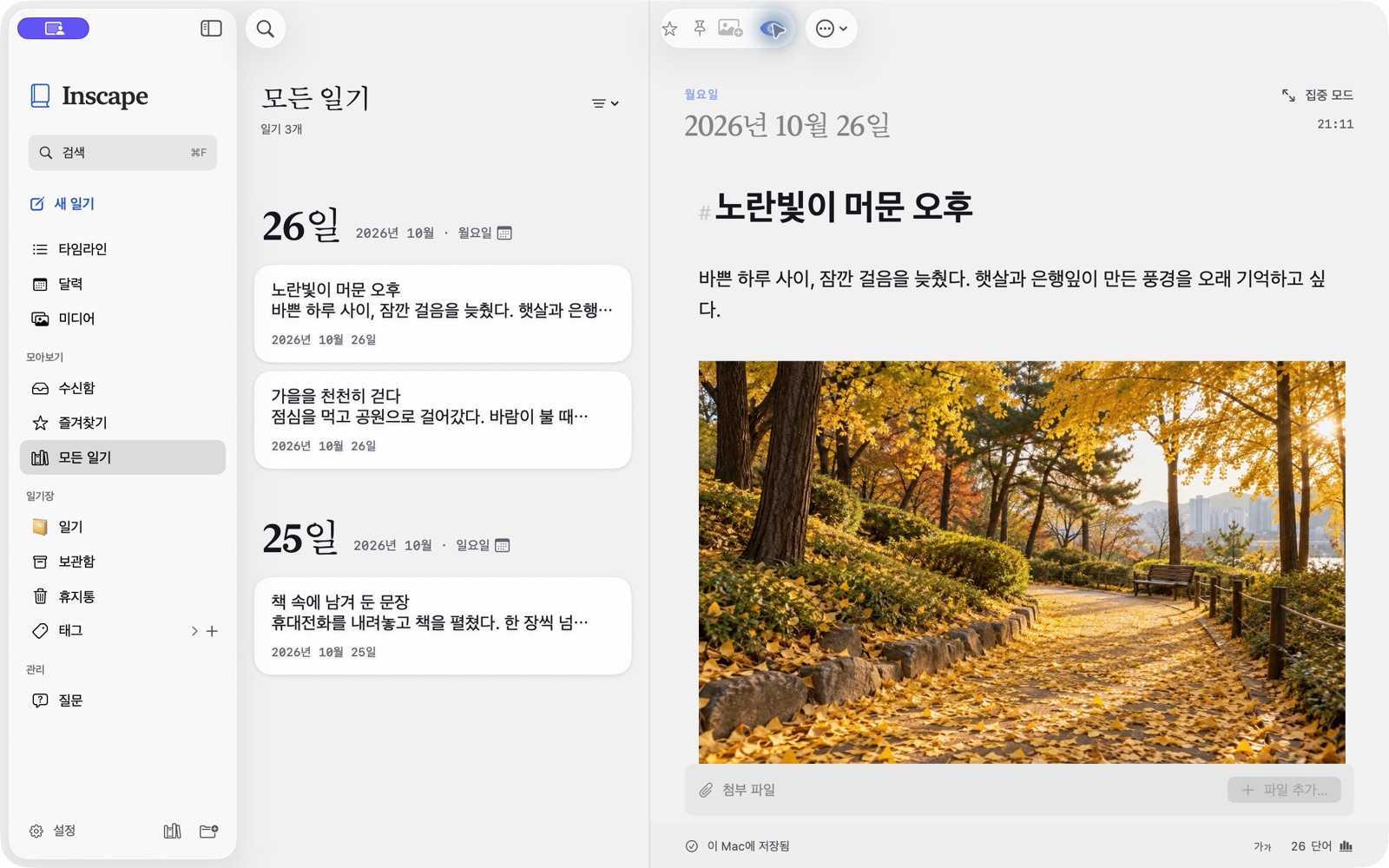
Inscape on Mac: a sidebar with timeline, calendar and journals, a list of entries, and an entry with a photo of an autumn path.
i.

Write offline and add attachments

  • Write offline, with automatic saving and a clear save status.
  • Markdown formatting, keyboard shortcuts, and focus mode.
  • Add photos, audio files, videos, and PDFs to your entries.
  • Change an entry’s date to write about an earlier day.
ii.

Find an entry by date, text, or photo

  • Browse your timeline, calendar, and photo library.
  • Search entry text and narrow results by journal or year.
  • Organize entries with journals, tags, favorites, and pins.
  • Choose light or dark appearance and customize your colors.

iii. Keep it protected

Encrypted on your Mac. Yours in the cloud.

Your local journal database and attachments are encrypted. Unlock Inscape with Touch ID or your Mac login password.

Optionally sync between Macs through your own Dropbox account, with end-to-end encryption and a separate sync passphrase. Create encrypted backups and review their contents before restoring.

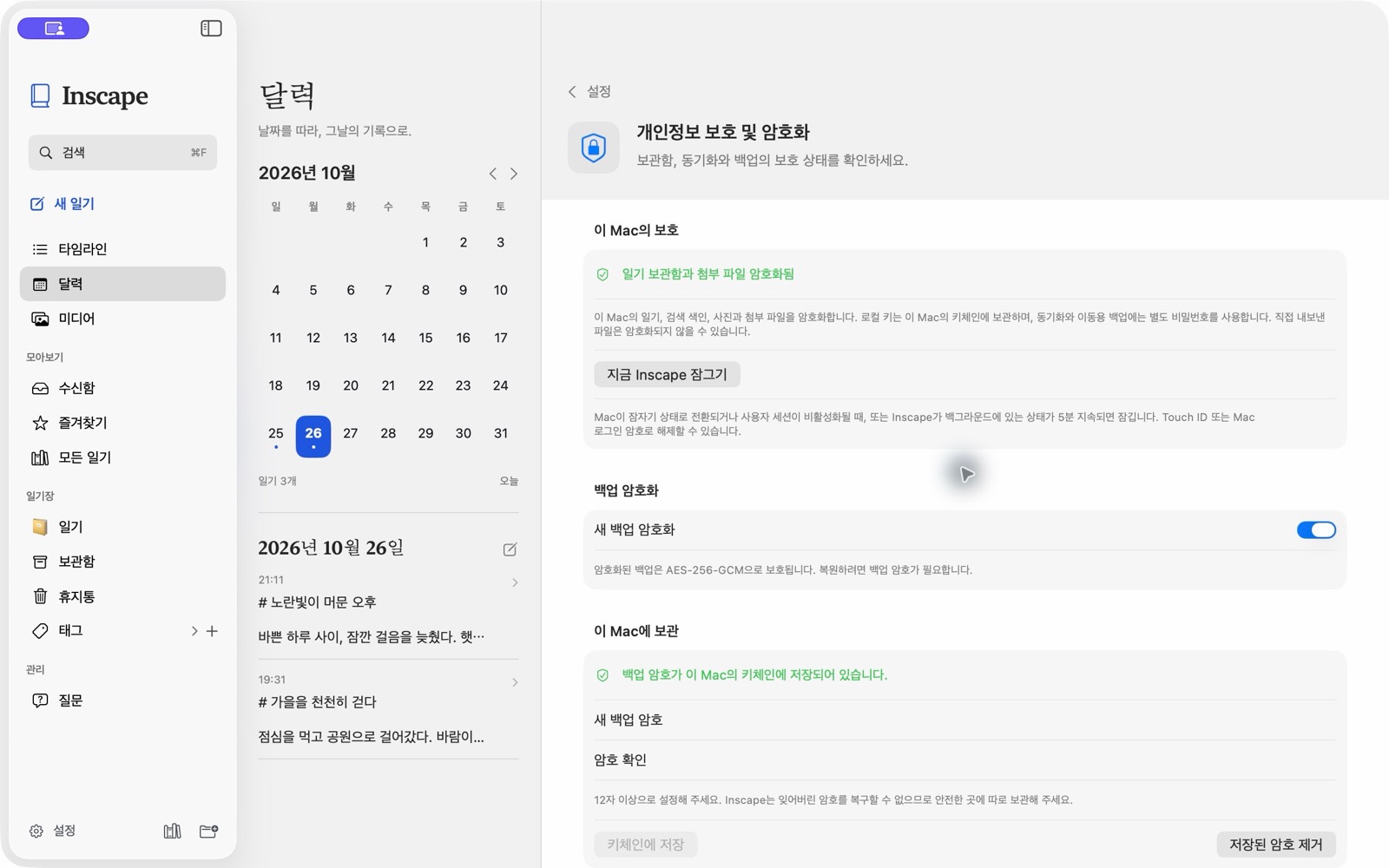
Inscape privacy and encryption settings, showing that the journal library and attachments are encrypted and that backups use AES-256-GCM.

Using Inscape on Mac

Free, including sync

Inscape and Dropbox sync are free to use. Sync needs your own Dropbox account and available storage.

We can’t recover passphrases

Keep your backup and sync passphrases somewhere safe. If you forget them, Inscape cannot recover them.

Exports are plain on purpose

Export entry text as Markdown, or save photos and attachments as decrypted copies. Files you deliberately export may be unencrypted.

Limits are written down

Sync size limits and instructions for moving an existing library are in Help & support.